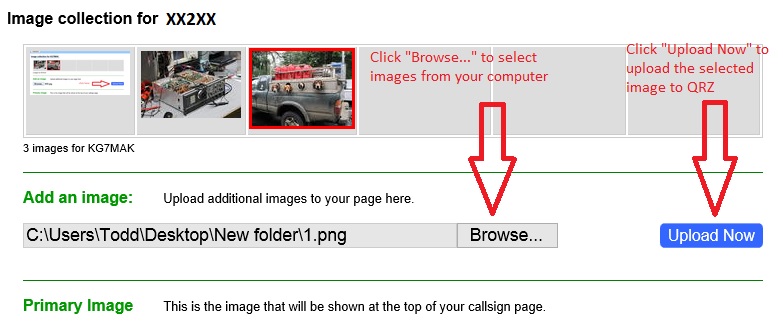
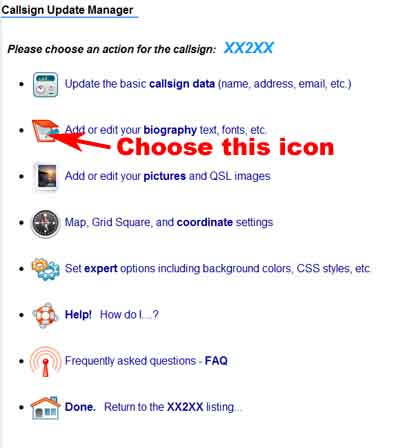
|
|
How to Add Pictures to your QRZ Biography
A Step-by-Step Guide
Uploading your Pictures
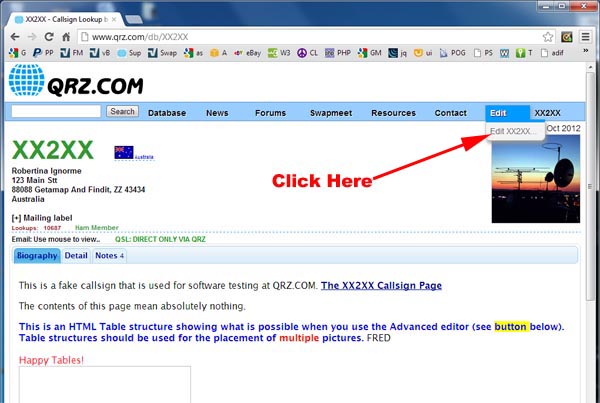
For these examples, replace XX2XX with your callsign.
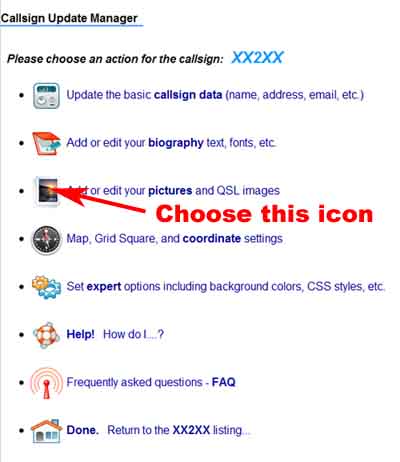
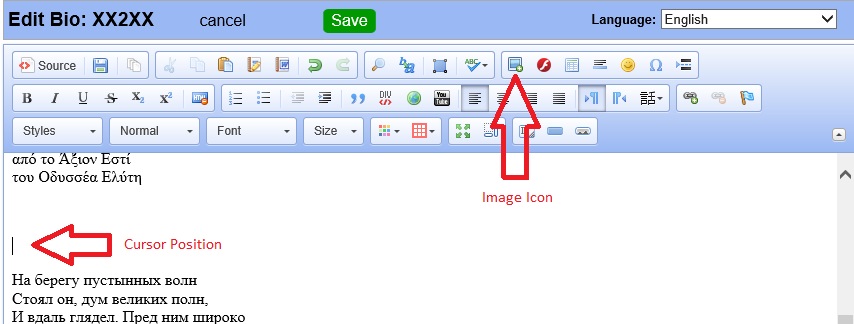
- Position the cursor at the place in your bio where you want the new image(s) to be inserted. Then, click the image icon.
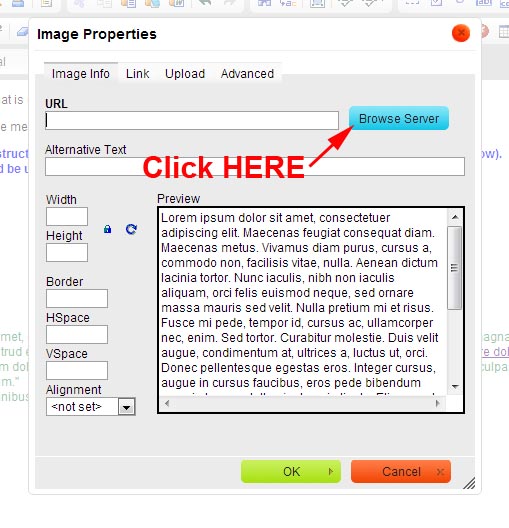
- A popup window will appear. Click on Browse Server
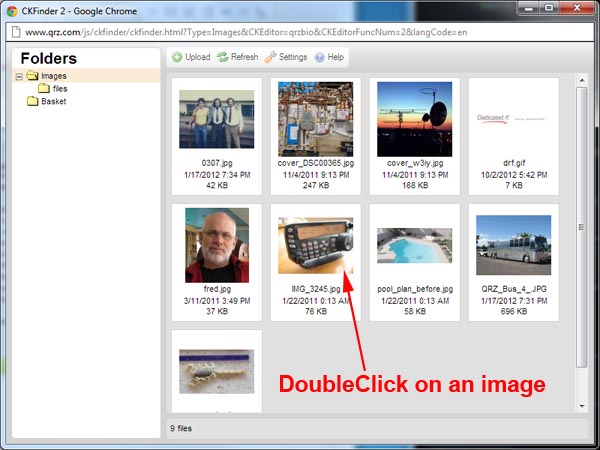
- A second popup window will appear. Locate the image you want to include and double-click on it.
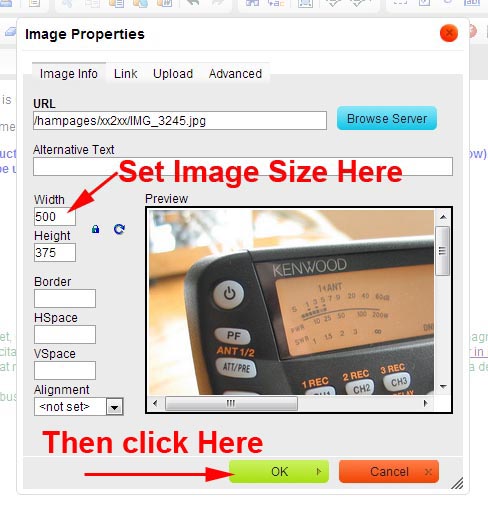
- The image will now appear in an example window. Along the left side of the box, adjust the Width, Height, and other parameters to adjust the picture to suit your taste. Click on OK to insert the picture into your bio.
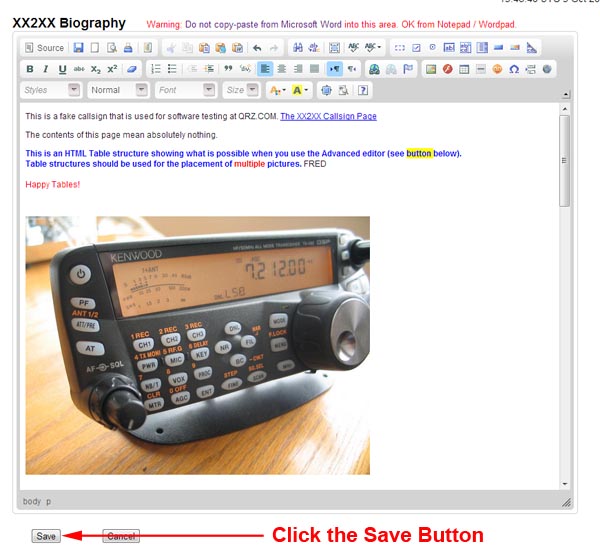
- Finish editing your text, add more pictures, etc., then click on Save
when you're done.
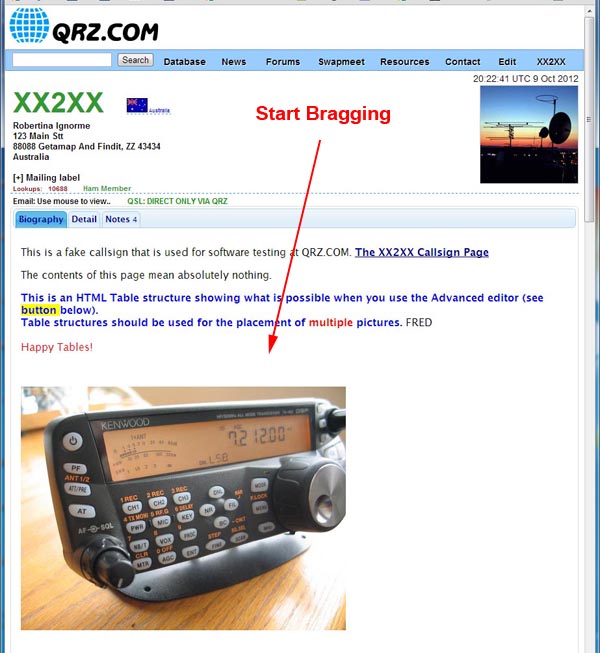
- Start bragging about your new callsign page.
Still need help? Try our Questions and Answers forum.
|
|